Scott Hanselman

Converting a 13 year old .NET WPF app called BabySmash to a self-contained .NET 5 app with the .NET Upgrade Assistant

April 08, 2021 Comment on this post [0] Posted in BabySmash | DotNetCore
Sponsored By

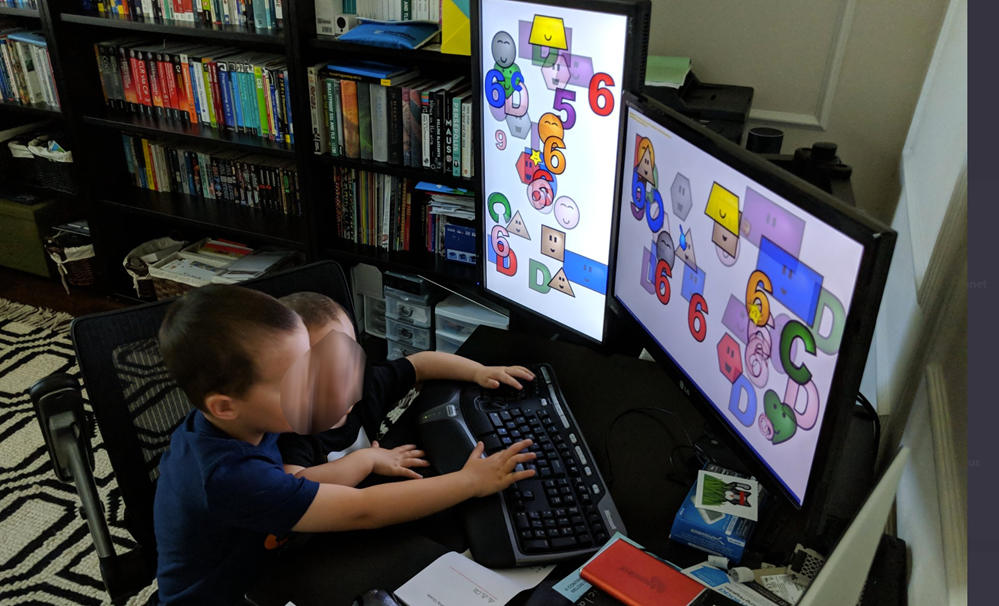
13 years ago I wrote a .NET 3.5 WPF application for my then 2 year old baby/toddler. Maybe he was 18 months. He was small. He now wants to drive. https://www.babysmash.com/ continues to be a thing, even today. Recently "Chris The Meme God" had a 20 million view TikTok featuring BabySmash...where he failed to mention the URL. Sigh.

Anyway, the code has been up at http://github.com/shanselman/babysmash for years and other than a few small fixes, really hasn't been touched in 4 or 5 years.

Until Cathy Sullivan from the .NET team used BabySmash as a test application to upgrade to .NET 5 in the year 2021. She used the .NET Upgrade Assistant. She even LIVE STREAMED the upgrade process!

image

Cathy sent me a PR and we put the resulting .NET 5 BabySmash application in a new dotnet5 branch at https://github.com/shanselman/babysmash/tree/dotnet5. I'd encourage you to check it out as it's very easy to build now.

Make sure you get the dotnet5 branch and "dotnet build" from there, not the main branch.

The version that Cathy sent me built great in Visual Studio but had a small issue when building from the command line. Fortunately Alex Elia followed up with a PR of his own that enabled BabySmash to cleanly build from the command line with just the .NET 5 SDK.

He said:

I wasn't readily able to find artifacts for the .NET 5.0 version of BabySmash, so I made a pull request against the repository with a continuous integration pipeline, updated README and adjustments to enable using the .NET CLI for build/run/publish workflows. 

https://github.com/shanselman/babysmash/pull/25

It was a project property [that prevented it from building from the command line.] The .NET CLI targets one version of MSBuild whereas Visual Studio/devenv.exe targets another. There was one particular property, GenerateManifests, in the csproj that the .NET CLI version of MSBuild rejected.

The property GenerateManifests being set to true chain triggers down to a call to MSBuild for a task FormatUrl (https://docs.microsoft.com/en-us/visualstudio/msbuild/formaturl-task?view=vs-2019) which is fairly intuitively named; It formats a URL. The .NET CLI version of MSBuild does not support this task and thus rejects the build.

Interesting note on why it was difficult to find this. WPF projects trigger a build task called MarkupCompilePass1 (https://docs.microsoft.com/en-us/visualstudio/msbuild/markupcompilepass1-task?view=vs-2019) to process the xaml/cs views files into generated .g.cs and baml files. If the build failed due to the GenerateManifests error then that dotnet.exe process would hang and subsequent builds will fail due to a collision on the WPF .g.cs generated files. 

Fantastic! I followed up with this small tweak to the "dotnet publish" command line which allows us to now to make a single babysmash.exe file that includes the whole app and .NET, with NO INSTALL.

dotnet publish --configuration Release --runtime=win10-x64 --output ./publish -p:PublishReadyToRun=true -p:PublishSingleFile=true -p:IncludeNativeLibrariesForSelfExtract=true --self-contained=true -p:DebugType=None

You can get the babysmash.exe from https://github.com/shanselman/babysmash/releases/tag/dotnet5-v0.1 if you'd like, or just install the old one from http://www.babysmash.com!


Sponsor: Extend your runway and expand your reach. Oracle for Startups delivers enterprise cloud at a startup price tag with free cloud credits to help you reel in the big fish—confidently. Learn more!

About Scott

Scott Hanselman is a former professor, former Chief Architect in finance, now speaker, consultant, father, diabetic, and Microsoft employee. He is a failed stand-up comic, a cornrower, and a book author.

facebook bluesky subscribe
About   Newsletter
Hosting By
Hosted on Linux using .NET in an Azure App Service

Take your Windows Terminal and PowerShell to the next level with Terminal Icons

April 06, 2021 Comment on this post [32] Posted in Win10
Sponsored By

I'm having a blast customizing my terminal and making my prompt awesome.

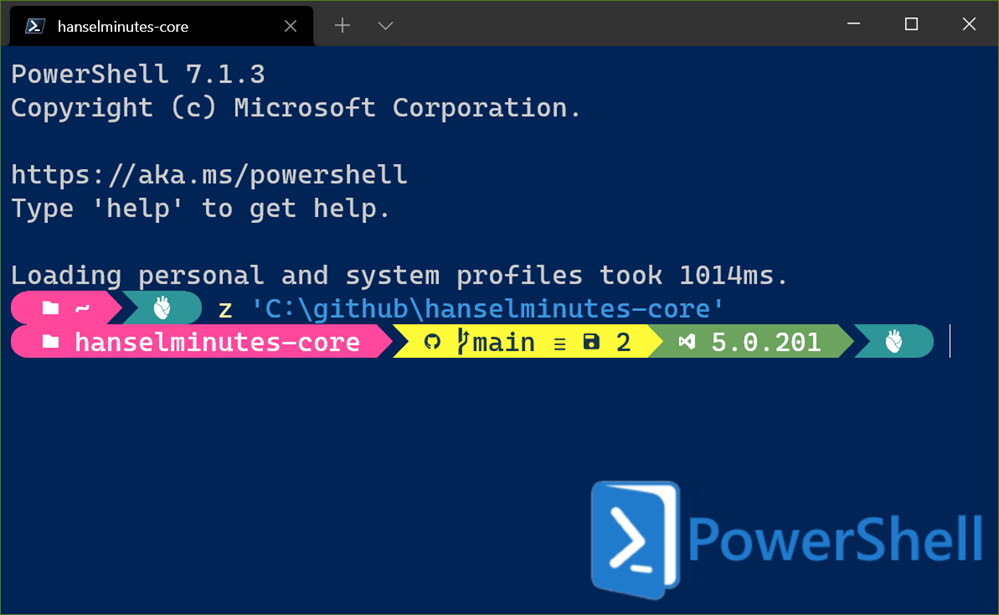
I thought it was lovely when I added Oh my Posh 3. But now that I've seen Kayla Cinnamon's terminal MINE IS HIDEOUS!

Windows Terminal Pretty Prompt

Ok, what can we add? MOAR ICONS.

Turns out that Brandon Olin from StackOverflow has created a Terminals Icons package that is *chefs kiss*. Go give this man 1000 stars, please.

Given I'm using the completely overpowered "caskaydiacove nf" Nerd Font Variant of the lovely Cascadia Code font, I've got all the icons I need ready to go!

I just install. (I'm using PowerShell 7 from the Windows Store, but remember PowerShell is cross platform):

PS> Install-Module -Name Terminal-Icons -Repository PSGallery

And then add one line to my $profile (edit with "code $profile"):

Import-Module -Name Terminal-Icons

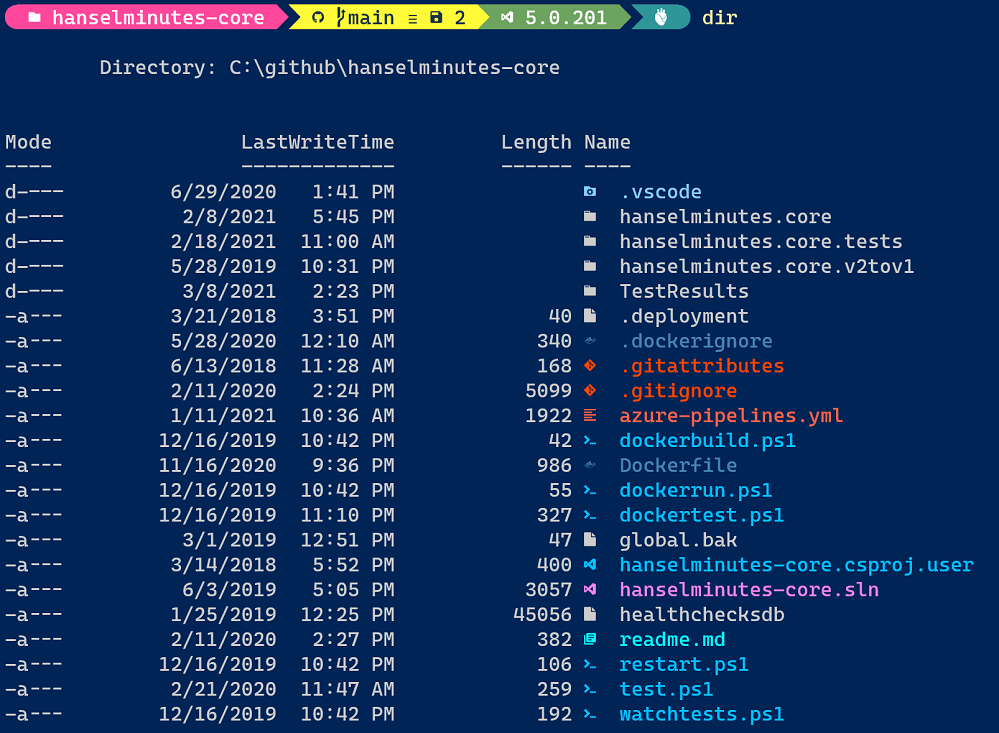
Now look at a directory, use dir, ls, or get-childitem, it doesn't matter...AND BEHOLD:

Lovely PowerShell with Directory Icons

Thanks Brandon and Kayla! Great stuff! What customizations have YOU made?


Sponsor: Extend your runway and expand your reach. Oracle for Startups delivers enterprise cloud at a startup price tag with free cloud credits to help you reel in the big fish—confidently. Learn more!

About Scott

Scott Hanselman is a former professor, former Chief Architect in finance, now speaker, consultant, father, diabetic, and Microsoft employee. He is a failed stand-up comic, a cornrower, and a book author.

facebook bluesky subscribe
About   Newsletter
Hosting By
Hosted on Linux using .NET in an Azure App Service

How to make Command Prompt, PowerShell, or any Shell launch from the Start Menu directly into Windows Terminal

March 25, 2021 Comment on this post [11] Posted in Win10
Sponsored By

I love the Windows Terminal, but right now I launch the Terminal, then I pick a Shell (PowerShell, CMD, bash, etc) from the menu. Sometimes I want to be "shell-first."

I'll hit the Start Menu, type cmd, and then the older console/terminal starts up. I have to remember to run Terminal THEN run cmd. So I said to myself, "self, what's a good way to fix that?"

When you press Start and start typing (which is different from WinKey+R and running a .exe directly) you're looking at Shortcuts/LNK files. You can make your own and change existing ones.

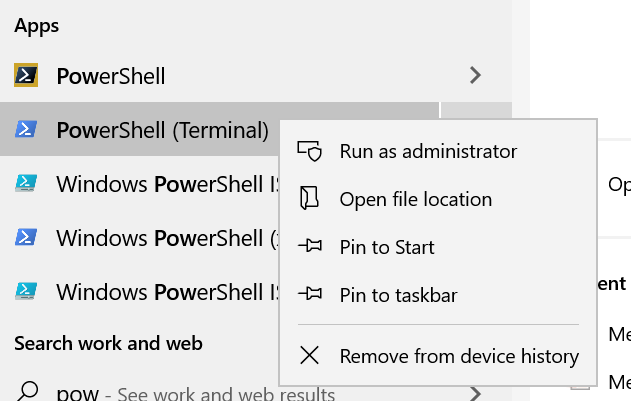
Press Start, type "Command Prompt" or "PowerShell" and then RIGHT CLICK the icon and Open File Location.

PowerShell in the Start Menu

For example, Command Prompt was here on my machine:

C:\Users\scott\AppData\Roaming\Microsoft\Windows\Start Menu\Programs\System Tools

So I Ctrl+C, Ctrl+V to make a copy (backup) or I can just right click and hit properties to change the one I have.

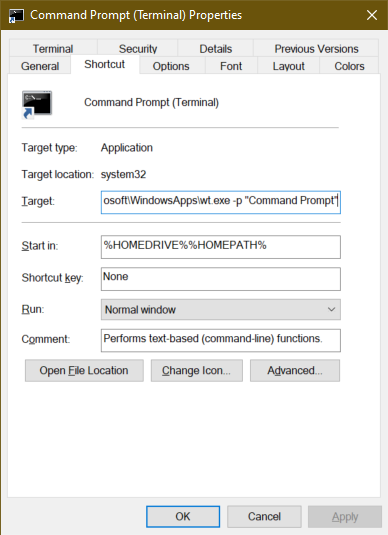
Then I change the Target to wt.exe (Windows Terminal) and pass in the Named Profile for the Shell I want:

C:\Users\scott\AppData\Local\Microsoft\WindowsApps\wt.exe -p "Command Prompt"

In this case, it's Command Prompt. I also renamed my LNK file to Command Prompt (Terminal) but that's optional.

Command Prompt in Terminal

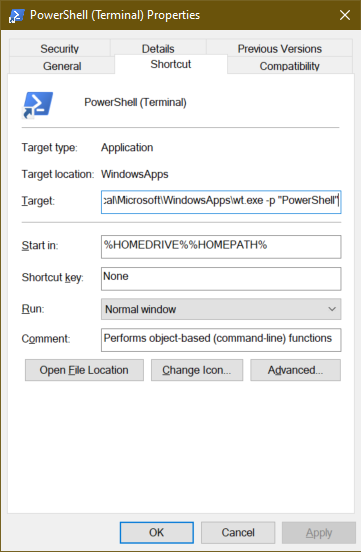
I can do the same thing for PowerShell. I've moved to open source PowerShell 7 (based on .NET Core) that I installed from the Windows Store.  Some store apps don't want you to change their icons so I just changed another. You can also make your own with right-click, New Shortcut.

PowerShell in Terminal

I even did this with the Visual Studio 2019 Developer Prompt by first making a Profile for it in my Terminal settings:

{
"commandline": "C:\\WINDOWS\\SysWOW64\\WindowsPowerShell\\v1.0\\powershell.exe -noe -c \"&{Import-Module \"\"\"C:\\Program Files (x86)\\Microsoft Visual Studio\\2019\\Community\\Common7\\Tools\\Microsoft.VisualStudio.DevShell.dll\"\"\"; Enter-VsDevShell 4f53a196}\"",
"guid": "{61c54bbd-c2c6-5271-96e7-009a87ff45ce}",
"hidden": false,
"name": "VS2019 Dev Prompt",
"startingDirectory": "%USERPROFILE%"
},

and then changing the icon to call it with wt.exe and the named profile. This can also work with Cygwin, Yori, Ubuntu, or any other shell.

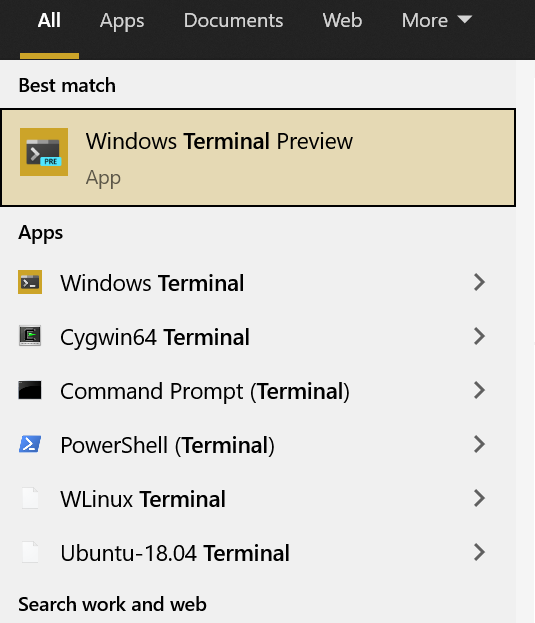
A few minutes and a few shortcut changes later, now I can hit start, type PowerShell, command, cmd, whatever, and it'll all load in Windows Terminal!

Windows Terminal for All

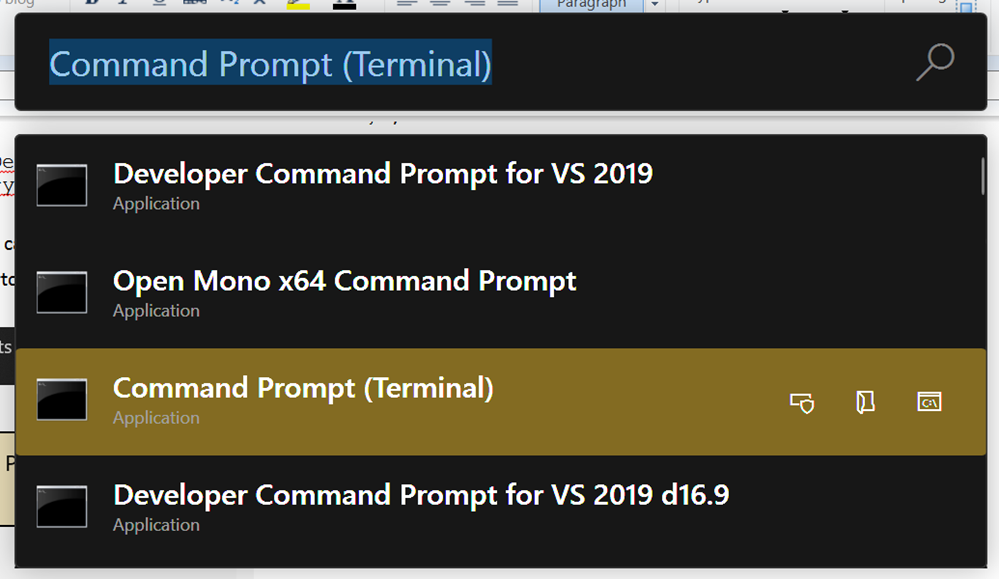
Since this technique works only with lnk files that the Start Menu consumes, it also works with PowerToys Run (which is like Quicksilver or Spotlight on Mac)!

PowerToys Run is like Quicksilver for Mac

Hope this helps!


Sponsor: The No. 1 reason developers choose Couchbase? You can use your existing SQL++ skills to easily query and access JSON. That’s more power and flexibility with less training. Learn more.

About Scott

Scott Hanselman is a former professor, former Chief Architect in finance, now speaker, consultant, father, diabetic, and Microsoft employee. He is a failed stand-up comic, a cornrower, and a book author.

facebook bluesky subscribe
About   Newsletter
Hosting By
Hosted on Linux using .NET in an Azure App Service

The Windows Terminal made better with the Command Palette plus Multiple Actions in one Command

March 23, 2021 Comment on this post [14] Posted in Open Source | Win10
Sponsored By

I thought I knew everything about the open source Windows Terminal and then I hit Ctrl+Shift+P like I do in VS Code (muscle memory) and it pops up a lovely Command Palette. You can search for any command and see the current keybinding. Super useful if you haven't yet discovered Window Panes. You can also type new wt.exe command lines and affect the current window.

NOTE: Don't forget, "wt" is an alias for the Windows Terminal, so you can Win+R and type wt and run it!

You can create your own commands and even nest them in the Palette! You can even iterate over other objects/profiles in your settings and dynamically create commands!

Since the wt.exe allows for chained commands, I can create a custom command in settings that calls wt.exe with chained commands/actions and bingo, I have a command called Development that opens multiple profiles, splits the screen and sets me up for Windows+Linux development in a single move!

Here I have a new command called Development that calls wt with a new-tab with a named profile, then a split-pane with another named profile.

"keybindings": 
[

{
"command":
{
"action": "wt",
"commandline": "new-tab -p \"Powershell\" ; split-pane -p \"Ubuntu-18.04\""
},
"name": "Development"
},
...

Here's the result!

Split screen

Oh, and by the way, you can also apply Shaders to the Windows Terminal...in real time! So that's AWESOME.

CRT Effect!

Have fun! Thanks to Kayla for her help on this post!


Sponsor: The No. 1 reason developers choose Couchbase? You can use your existing SQL++ skills to easily query and access JSON. That’s more power and flexibility with less training. Learn more.

About Scott

Scott Hanselman is a former professor, former Chief Architect in finance, now speaker, consultant, father, diabetic, and Microsoft employee. He is a failed stand-up comic, a cornrower, and a book author.

facebook bluesky subscribe
About   Newsletter
Hosting By
Hosted on Linux using .NET in an Azure App Service

Visual Studio hotkeys at the PowerShell command line in Windows Terminal

March 18, 2021 Comment on this post [7] Posted in Open Source | VS2019
Sponsored By

Muscle memory is a heck of a thing. When I want to build code I type Ctrl-Shift-B. I can't not. It's built into my hands! Ctrl-Shift-T is test (even though it's non-standard, it's there, in my hands.

I spend a lot of time at the command line, in Windows Terminal, in PowerShell, using PSReadLine. So why not make a few of these intuitive hotkeys work for me there as well?

PSReadLine supports Set-PSReadLineKeyHandler which is basically hotkey bindings to any arbitrary script block.

Here's Shift-Ctrl-B typing dotnet build and pressing enter. Just add these to your $profile, after you've imported PSReadLine via

if ($host.Name -eq 'ConsoleHost')
{
Import-Module PSReadLine
}

Building with Shift-Ctrl-B

Set-PSReadLineKeyHandler -Key Ctrl+Shift+b `
-BriefDescription BuildCurrentDirectory `
-LongDescription "dotnet Build the current directory" `
-ScriptBlock {
[Microsoft.PowerShell.PSConsoleReadLine]::RevertLine()
[Microsoft.PowerShell.PSConsoleReadLine]::Insert("dotnet build")
[Microsoft.PowerShell.PSConsoleReadLine]::AcceptLine()
}

Here's Shift-Ctrl-T typing dotnet test and pressing enter.

Set-PSReadLineKeyHandler -Key Ctrl+Shift+t `
-BriefDescription TestCurrentDirectory `
-LongDescription "dotnet Test the current directory" `
-ScriptBlock {
[Microsoft.PowerShell.PSConsoleReadLine]::RevertLine()
[Microsoft.PowerShell.PSConsoleReadLine]::Insert("dotnet test")
[Microsoft.PowerShell.PSConsoleReadLine]::AcceptLine()
}

Here's it in Animated Gif Form! (Using Carnac to see the hotkeys being pressed)

Since I am using Ctrl+Shift+T for testing (that's just me) I did need to manually unbind it from New Tab in my Windows Terminal settings. Just be aware.

{
"command": "unbound",
"keys": "shift+ctrl+T"
},

Sweet. What hotkeys will YOU hook up?


Sponsor: Have what it takes to code securely? Select from dozens of complimentary interactive challenges in Veracode Security Labs, test your skills, and earn a badge. Learn more.

About Scott

Scott Hanselman is a former professor, former Chief Architect in finance, now speaker, consultant, father, diabetic, and Microsoft employee. He is a failed stand-up comic, a cornrower, and a book author.

facebook bluesky subscribe
About   Newsletter
Hosting By
Hosted on Linux using .NET in an Azure App Service

Disclaimer: The opinions expressed herein are my own personal opinions and do not represent my employer's view in any way.